Guide
Work a rep's territory
Set up the stores a rep covers, by store number or postcode, see them on a map, and pull the out-of-stocks and changes for just that patch.
Availability Every plan. CSV export on Brand and up.
There are two ways to narrow Stores to a rep's patch. My stores is a list of stores you pick, kept for you. A territory is a set of postcodes, kept in the page's address. Use whichever matches how your reps' patches are defined, or both.
My stores#
My stores is your own list of stores, at any chain. It holds up to 500. Each person on your team has their own.
Star a store#
- Open a store's page from the Stores list.
- Click Add to My stores. The button then reads In My stores.
Click it again to take the store off.
Add stores by number#
- On Stores, click Add stores.
- Under Chain, choose the chain. One add is for one chain: for stores at two chains, add each chain's numbers separately.
- Under Store numbers, paste the numbers, from a list or a spreadsheet column. Commas, spaces and new lines all work. "584" finds Coles store 0584.
- Click Add.
The dialog says what happened: how many stores were added, which were already in My stores, and which numbers aren't stores at that chain. One add takes up to 200 numbers. If you paste more, the rest stay in the box, and the dialog says how many. Click Add again to add them. If My stores is full, it says how many didn't fit.
The list behind the dialog shows the new stores straight away, with the count on My stores updated.
See only My stores#
Click My stores above the list. The list, the map and the export show only your stores, at every chain. Click it again to see every store.
A territory by postcode#
- On Stores, under Territory (postcodes), enter postcodes and ranges, separated by commas, such as "2000-2234, 2500".
- Click Show.
A range can be typed with spaces around the dash ("2000 - 2234"), or with the long dash a Mac or Word puts in ("2000–2234"): either reads as one range. You can enter up to 20 postcodes and ranges. Anything that isn't a 4-digit postcode or a range of them is left out, and the box shows what was read. Click Clear next to it to drop the territory.
Australia and New Zealand both use 4-digit postcodes, so 3010 is in Melbourne and in Rotorua. Postcodes are read in your brand's own country: New Zealand if all your products are at New Zealand chains, else Australia. Choose a chain or region in the other country, and they're read there instead. When New Zealand chains are listed, the hint under the box says which.
See it on a map#
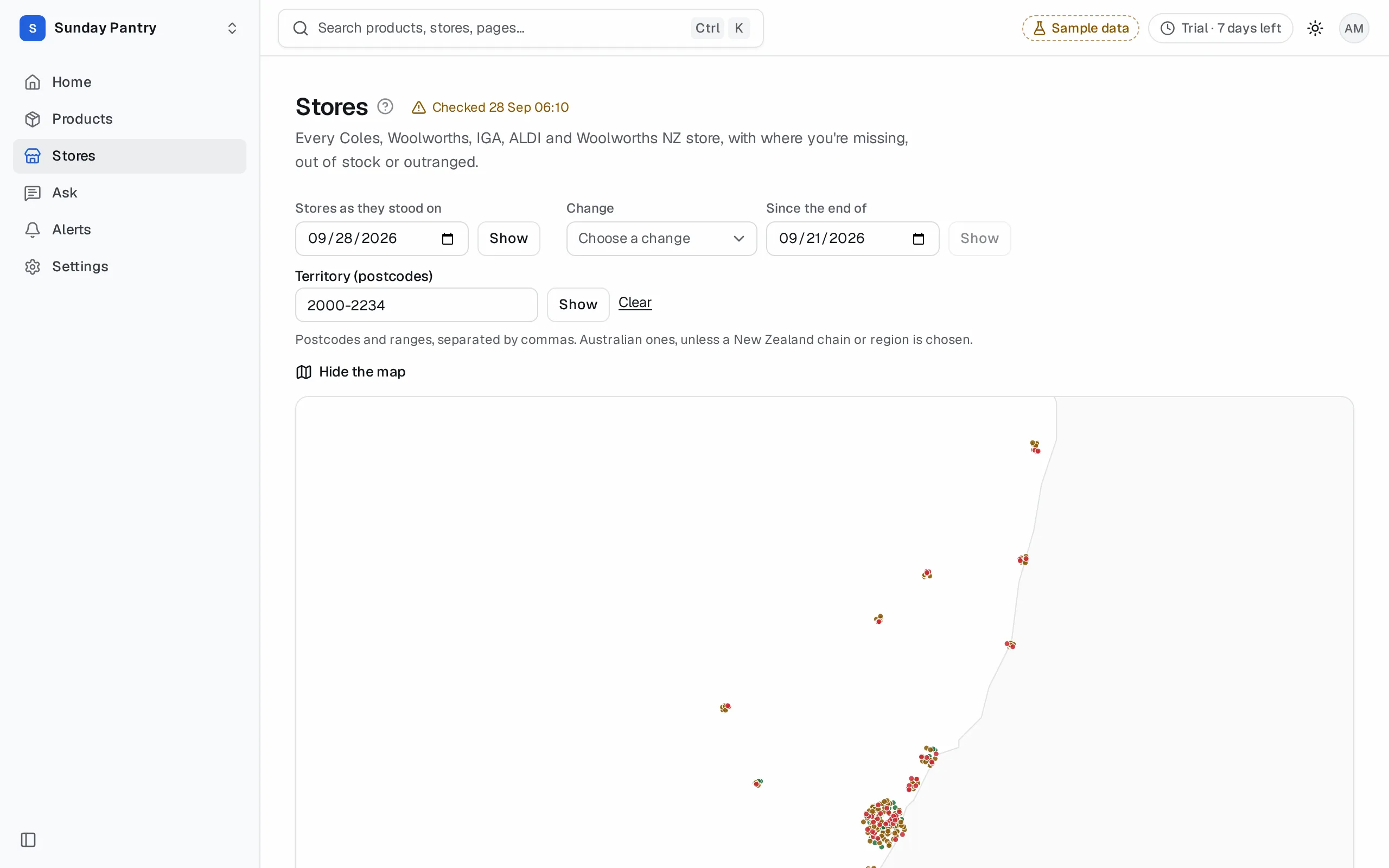
Click Show on a map. Every store in the list is a dot, coloured by the most urgent thing about it:
| Dot | Means |
|---|---|
| Out of stock | At least one of your products is out of stock there. |
| Not ranged | At least one of your products isn't ranged there. |
| On the shelf | None of your products is out of stock or not ranged there. |
| None of yours listed | The store has none of your products listed. |
The map zooms to the stores shown, and the legend counts each colour. Click a dot to open the store. A store we have no map position for isn't drawn, but it's still in the list. Click Hide the map to close it.
Work the patch#
My stores and the territory narrow every other filter. Combine them with:
- The tabs. Out of stock 2+ days for the stores to visit first, longest out at the top. Not ranged for stores that should range you. Rival carried, you're not for range gaps. See Choose a list.
- The chain and state. To split the patch by chain.
- Stores that changed. Under Change, choose what happened, such as Went out of stock or Dropped, pick a day under Since the end of, and click Show. The list is the stores in the patch where it happened. See Stores that changed.
Export the patch#
Click Export, then CSV: stores or CSV: by product. The CSV follows My stores, the territory and every other filter, so it's the same stores as the screen. Each row has the store number, postcode, latitude and longitude where we have them, ready for a rep's app. See Export the list.
Share it#
The territory, the tab and the other filters are in the page's address, so you can send the link to a colleague on your team and they'll see the same list.
My stores isn't shared: a link with My stores turned on shows your colleague their own My stores. To give a rep your list, send a territory link or the CSV.
What it can't tell you#
- A store's postcode is where we have it. A store with no postcode isn't in any territory.
- My stores and the territory narrow the list. They don't change Home, Products or alerts, which cover every store.
Was this page helpful?
Updated 9 October 2026