Docs
Alerts
Rules that email you when something happens on your shelf or a rival's: out of stock, dropped from or added to stores, a promo, a price cut, a price move at another chain. Everything from overnight comes in one email at 7:00.
Availability Every plan, rival alerts included. Solo 3 alerts, Brand 25, Growth and Enterprise unlimited. A rule on a whole group counts as one.
Alerts are off until you set one. A rule watches one product, or a whole group: any of your products, or any rival you watch. It emails the person who set it, only when it fires: one line per product, never one per store, and everything from overnight in one email at 7:00.
Start with three rules#
On the Alerts page, three rules cover your whole range and your rivals, one click each:
- Any of my products is out of stock at 20+ stores for 2+ days.
- Any rival goes on promo.
- Any rival cuts its price by 10% or more.
Each covers every product in the group, including ones you add later. The out-of-stock rule is offered when some of your products have their stock read, and the rival rules once you watch a rival. Once you've set one, it moves to your list. The page offers the ones you haven't set yet.
Set a rule on a group#
- Go to Alerts and click New alert.
- Choose Any of your products or Any rival you watch. Store brands you watch count as rivals.
- Choose what happens, and type the number of stores or the percentage if you want a different one.
- To narrow it, pick a chain (Every chain by default) and a state or New Zealand region (Everywhere by default), such as "Coles, WA only".
- Click Set alert.
| Group | Rules |
|---|---|
| Any of your products | Out of stock at N+ stores for 2+ days (20 suggested). Dropped from N+ stores (10). A promo starts. Its price moves at another chain. Another chain follows its price move. |
| Any rival you watch | A promo starts. Its price is cut by X% or more (10%). Added to N+ stores (10). Dropped from N+ stores (10). Another chain follows its price move. |
A group rule fires for each product on its own: once when that product crosses the line, then quiet while it stays over. With a state or region, the stores counted are the ones there ("out of stock at 37 WA stores"). A price cut counts a cut across the chain or a state, never at one store.
Set an alert on one product#
- Open the product's page.
- Click Alert me. If the team already has rules on it, the button reads "Alerts (2)".
- Under Email me when…, choose a rule. Each is filled in from the product's own numbers, so you can usually keep them.
- Click Set alert.
On a rival's product, the rules are its moves: a promo starts, its price is cut by X% or more, it's added to or dropped from N+ stores, it's out of stock, its price drops below an amount, or another chain follows its price move.
You can also set the suggested out-of-stock rule on one product in one click: on the first product you're shown after you sign up when it's out of stock somewhere, and on the setup card on Home if you see one during your trial.
The rules#
| Rule | Fires when | Suggested setting |
|---|---|---|
| Out of stock at N+ stores for 2+ days | At least N stores have been out of stock for two days or more. | One product: about 3% of the stores that carry it, between 5 and 50. A group: 20. |
| Dropped from N+ stores | At least N stores drop it since the rule was last checked, usually the day before. | One product: the same number. A group: 10. |
| Added to N+ stores (rivals) | At least N stores start ranging it since the rule was last checked. | One product: the same number as out of stock. A group: 10. |
| A promo starts | It goes on promotion. | |
| Price cut by X% or more (rivals) | Its shelf price falls by at least X% since the rule was last checked, across the chain or a state, never at one store. | 10% |
| Its price moves at another chain | The same product at another chain in your plan has a price rise, cut or promo start. See Did the other chain follow. | |
| Another chain follows its price move | The same product at another chain moves the same way within 14 days after its own move. | |
| The shelf price drops below $X | Its median shelf price falls below the amount (one product only). NZ$ for a New Zealand product. | About 10% under today's price, rounded down to the nearest 10 cents. |
A rule is only offered where it can fire:
- Out of stock isn't offered on a product whose stock isn't read. That's every product at IGA, New World, PAK'nSAVE, Chemist Warehouse and Mitre 10 NZ, and ALDI's regular range: at ALDI, stock is read for Special Buys only.
- Dropped from or added to stores isn't offered where ranging isn't read: Chemist Warehouse and Mitre 10 NZ.
- A promo starts isn't offered at Bunnings or Bunnings NZ, which run no promotions.
When you pick a chain, only the rules it can fire are offered. A group rule on every chain simply never fires at a chain where it can't.
When you're emailed#
- One email in the morning. What fires overnight comes together in one email from 7:00, Sydney time (New Zealand time if all your own products are at New Zealand chains). Your products come first, then rivals. A rule that fired for more than six products at one chain lists five and links to the rest.
- During the day, within the hour. Rules are checked every hour and whenever new data arrives. If something fires later in the day, such as a rule you just set, it goes straight after that check, still one email for everything waiting. Nothing is sent between 9 pm and 7 am: it waits for the morning.
- A rule fires when it crosses its line, then stays quiet while it stays over. "Out at 40 stores" every day for a week is one line, not seven. Once it's back under the line, it can fire again.
- Each line names the product and chain, says what happened, and links to the product.
- If you remove a rule before its email goes, its lines go with it.
- To stop an alert, remove it on the Alerts page. Unsubscribing from trial emails doesn't stop alerts.
The Alerts page#
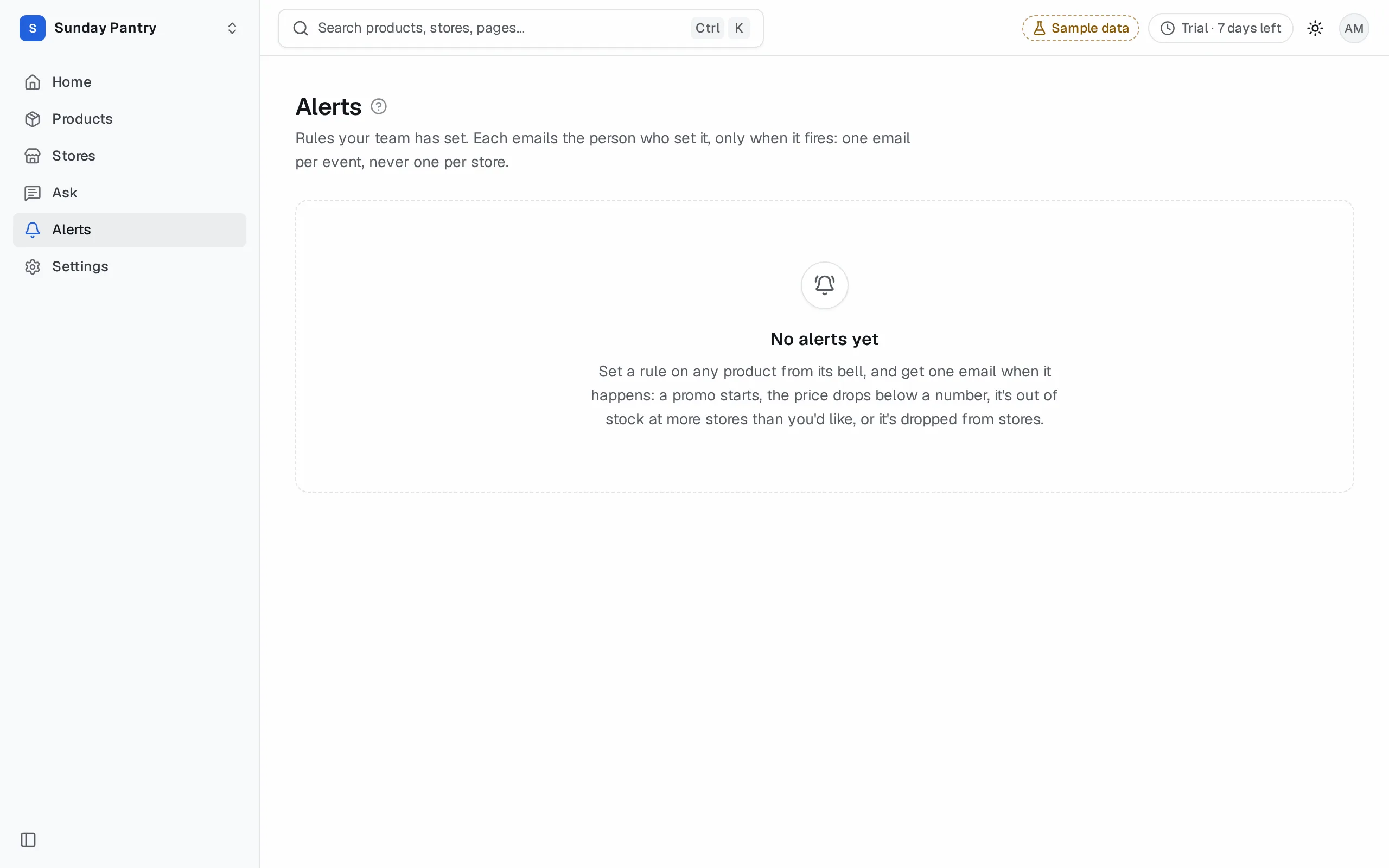
Alerts lists every rule your team has set: the product or group, where it looks, the rule, who set it (Set by you or a colleague's name), and when it last fired. The person who set a rule hears about it; nobody else does. If you want to hear too, set your own rule.
Remove an alert#
Click the bin next to the rule, on the Alerts page or in the product's Alert me dialog. Only the person who set a rule, or an owner or admin, can remove it.
Limits#
Your plan sets how many rules your team can have. A rule on a group counts as one. The Alerts page shows "3 of 25 set". See Plans and limits.
While your account is Paused, rules wait and don't email, and you can't set new ones. They start again from the latest day once your plan is paid.
A rule on a product at a chain outside your plan's retailer groups waits, and starts again from the latest day once the group is back on your plan. A group rule leaves those products out. Someone who leaves your team stops getting emails.
Was this page helpful?
Updated 14 October 2026