Docs
What changed
Every price, promo, ranging and stock change on your products and rivals between any two days.
Availability Every plan, within your plan's history
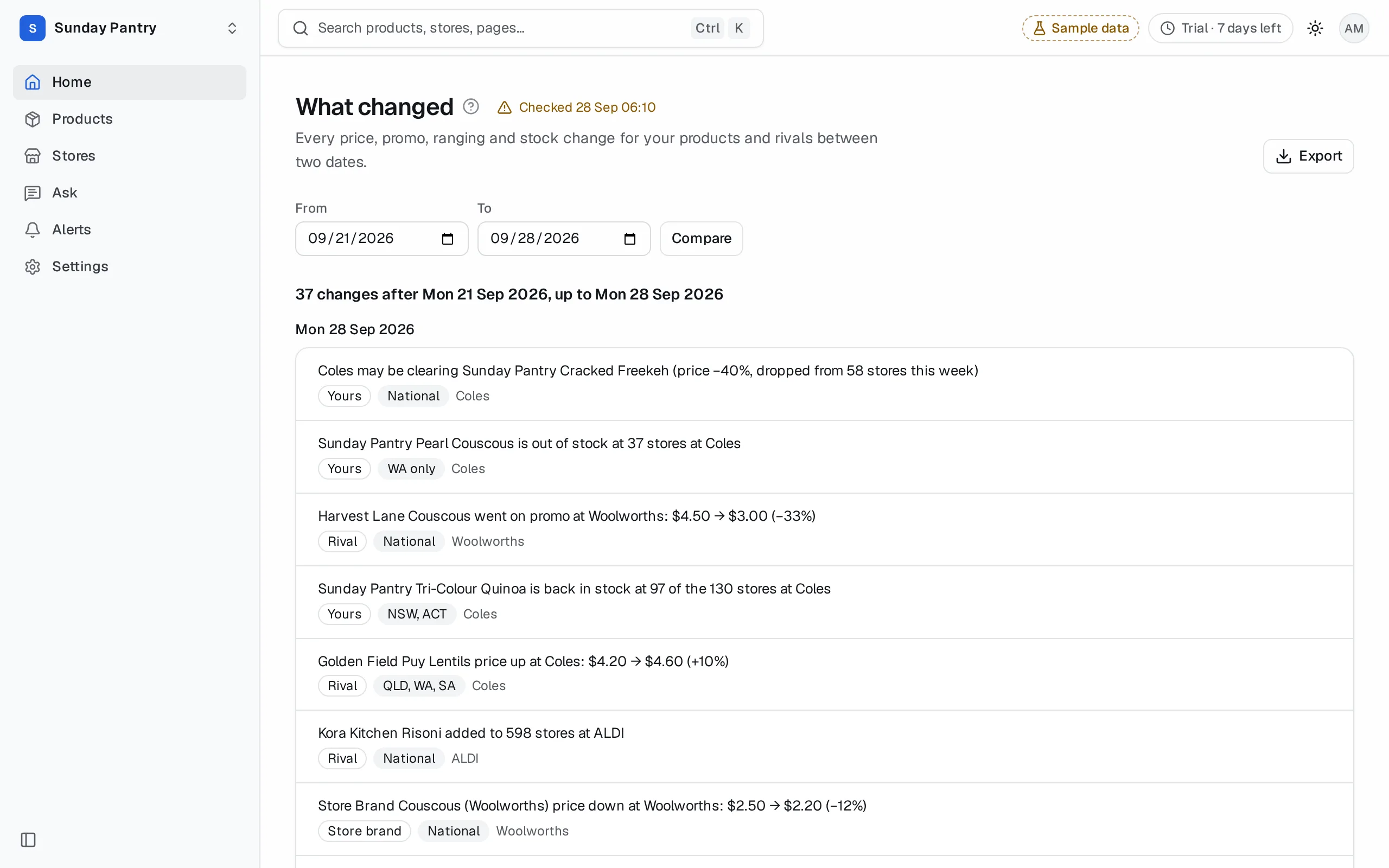
Home shows the last week. What changed shows any window you choose, as far back as your plan's history goes.
Compare two days#
- On Home, click Compare dates. From a product page, click What changed to see that product only.
- Pick a From and a To date.
- Click Compare.
You get two parts:
- Every change between them, newest day first, in the same sentences as Home. Under a price move of a product matched at other chains, a line per chain says whether it followed. See See whether the other chain followed a price move.
- The two days side by side, folded under the changes: open Every product on … and … for one row per product and chain, with Median price, Stores on promo, Stores ranged and In stock on each day, and the later value in bold where it moved.
Narrowed from a search answer#
A search answer, such as "Coles promos this week", opens What changed narrowed to what it counted: one chain, one state or region, promos or drops only, or your products or your rivals' (store brands count as rivals). A line under the dates says what it's narrowed to, such as "Promos for your rivals at Coles only." A state or region keeps the changes there and the national ones; a change at one store isn't counted in its state. Click Show every change to see the rest. The CSV keeps the same narrowing.
Export#
Export offers Changes (CSV), the list of changes, and Both days (CSV), the side-by-side table. See Export.
When it shows nothing#
- No changes between these dates: nothing moved on these products.
- Pick two different days: both dates fall on the same day of data.
- If your From date is before your data or your plan's history, the comparison starts on the first day it can, and says so. If both dates are too early, it tells you the first day to pick from. On a plan limit it also offers See plans.
The page's address includes the dates, so you can send it to a colleague on your team and they'll see the same comparison. See Links.
Was this page helpful?
Updated 9 October 2026