Guide
Choose your products and rivals
Add your own products and the rivals you compare them with, change a product's role or remove it, and see how they count against your plan.
Availability Every plan. How many you can watch depends on your plan.
Your list is the products you watch: your own, and your rivals'. Home, Products, Stores, What changed and alerts show only the products on it. Your brand has one list, so a product you add shows for everyone on your team.
Add your products#
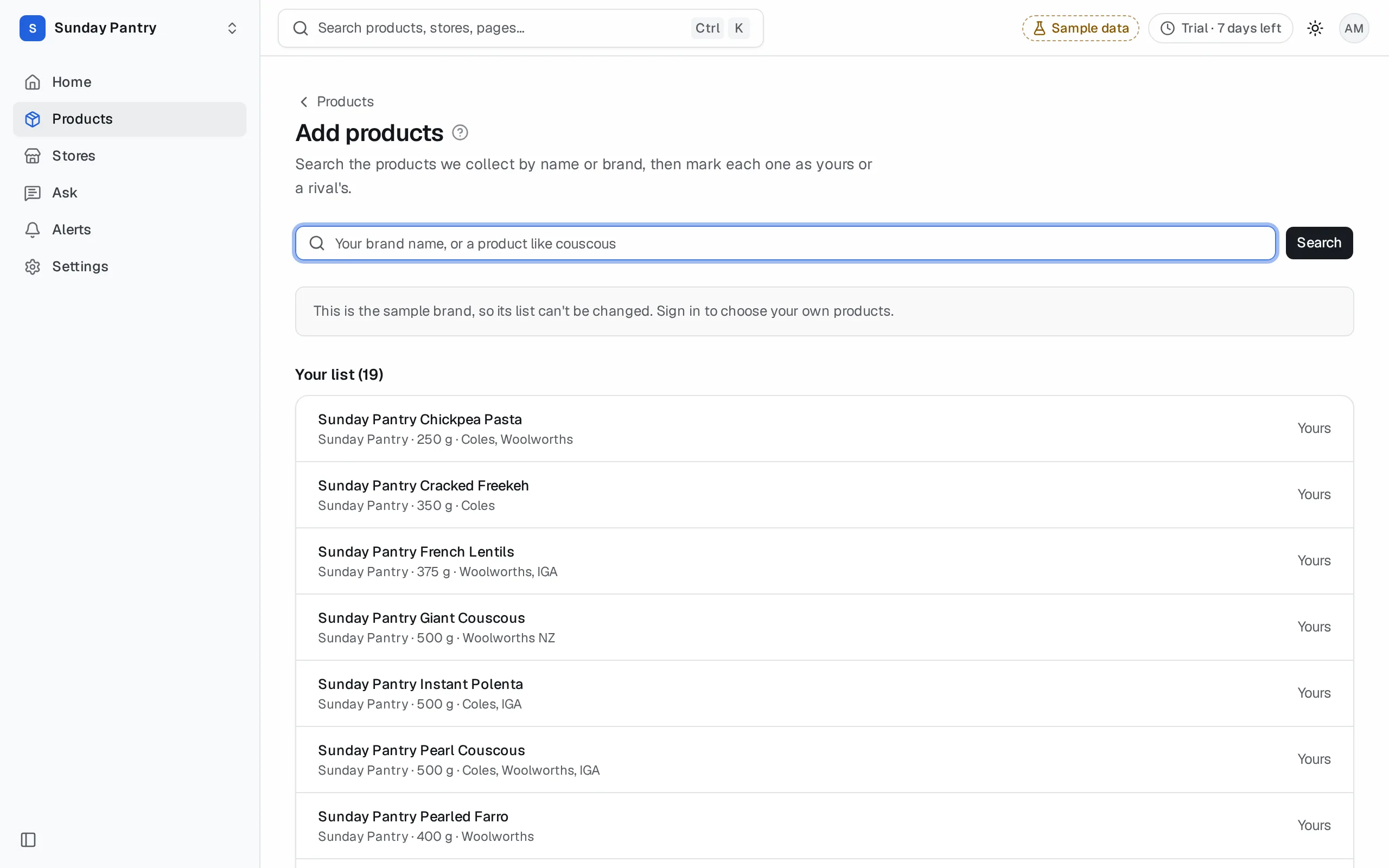
- On Products, click Add products. Or, in Settings under Products and rivals, click Manage products. Both open the same page.
- Type your brand name, or part of a product's name, and click Search.
- Next to each of your products, click Yours. Or, when you searched your brand's name, click Add all as yours on the card above the results to add every listing of the brand in one step.
Each result shows the product's name, its brand, its pack size and its chain. A product sold at several chains is listed once for each chain, so add each listing you want to follow. Search shows up to 50 results, sorted by brand. If yours isn't there, search for a longer part of its name.
A product you add shows on every page straight away. Your list is also at the bottom of the page, with each product's role.
Add your rivals#
- On the same page, search for the rival's brand or product.
- Click Rival next to each one you want to compare against, or Add all as rivals on the brand's card to add the whole brand.
When you first set up, we suggest up to two rivals for each of your products: other brands' products of the same kind and pack size, at a similar price, never a store brand. You can add more, or remove any of them.
From search#
You don't need to go to Add products. Search for any product from the search bar at the top of the page (⌘/Ctrl then K). A product you don't watch opens a preview with where it's ranged, its category and its barcode. Click Watch this to add it as yours, or Add as rival. Once it's added, its product page opens. See Search and quick answers.
Store brands#
The app doesn't add store brands for you, and set-up never suggests one as a rival. To follow a store-brand product, such as a Coles own-brand pack, add it as a Rival. It then counts as one of your rivals.
On Growth and up, New in your categories shows what the store brand did in your categories at Coles without you adding anything.
Change a role or remove a product#
- Open Add products (from Products, or Manage products in Settings).
- Find the product in your list at the bottom of the page, or search for it.
- Click Remove.
To change a product's role, remove it, then add it again with Yours or Rival.
Removing a product takes it off every page for your whole team. Its history isn't lost: add it again and its charts show everything we have for it. An alert set on it stays on the Alerts page as "A product you no longer watch" until you remove the alert.
How they count against your plan#
- Your products. Plans count your largest number of products at any one chain. If you have 8 products at Coles and 6 at Woolworths, that's 8. Solo watches 5 of your products, and Brand 25. Settings shows "Plans count … of yours" when the two numbers differ. See How products are counted.
- Rivals. Solo allows 2 per product rivals per product, and Brand 5 per product. It's a total across your list, not a cap on each product: your products times the rivals per product, spread however you like. Rivals are counted like your products, by the largest number at any one chain. See Rivals.
- The whole list. One brand can follow up to 600 listings in all. At that point Add products says your list is full.
When an add would go over a limit, the app says so and names the plan that lifts it, such as "Solo watches 5 of your products. Brand watches more." Nothing is added. The limit is counted on your list as it stands at that moment, so two people adding at once, or two tabs, can't take the list past it. A card on Products and Add products also says when you've reached either limit.
During the trial, you can add more of your own products than the plan covers. You can also add as many rivals as you like. A card says so, and which plan covers your products after the trial. Once a plan is paid, its rival limit applies. Once the trial has ended and your account is Paused, you can't add products until you choose a plan. See Trial and Paused.
Products at chains outside your plan#
You can add a product sold at a chain outside your plan's retailer groups. Its search result says which group shows it, such as "Add NZ supermarkets to see it". It stays on your list, and counts toward your plan's limits, but it's left off Products, Home and Stores until you add that group. A card on Products says which chains you're also at and the group to add. See Retailer groups.
When a product shows no numbers#
- Not loaded yet: you've added it and we haven't read it since. Its numbers show after the next check.
- "Gone since" and a date: we no longer find it on any shelf we read. Its page says "Last seen" and the day under Stores ranged. It may be delisted. It stays on your list, and counts toward your plan, until you remove it.
What it can't tell you#
- Search finds only products we read. A product that isn't on any shelf we cover can't be added.
- The sample brand's list can't be changed. Sign in to choose your own products.
Was this page helpful?
Updated 9 October 2026