Docs
Stores
Every store of every chain you cover, with where you're missing, out of stock, or outranged by a rival.
Availability Every plan. CSV export on Brand and up.

Choose a list#
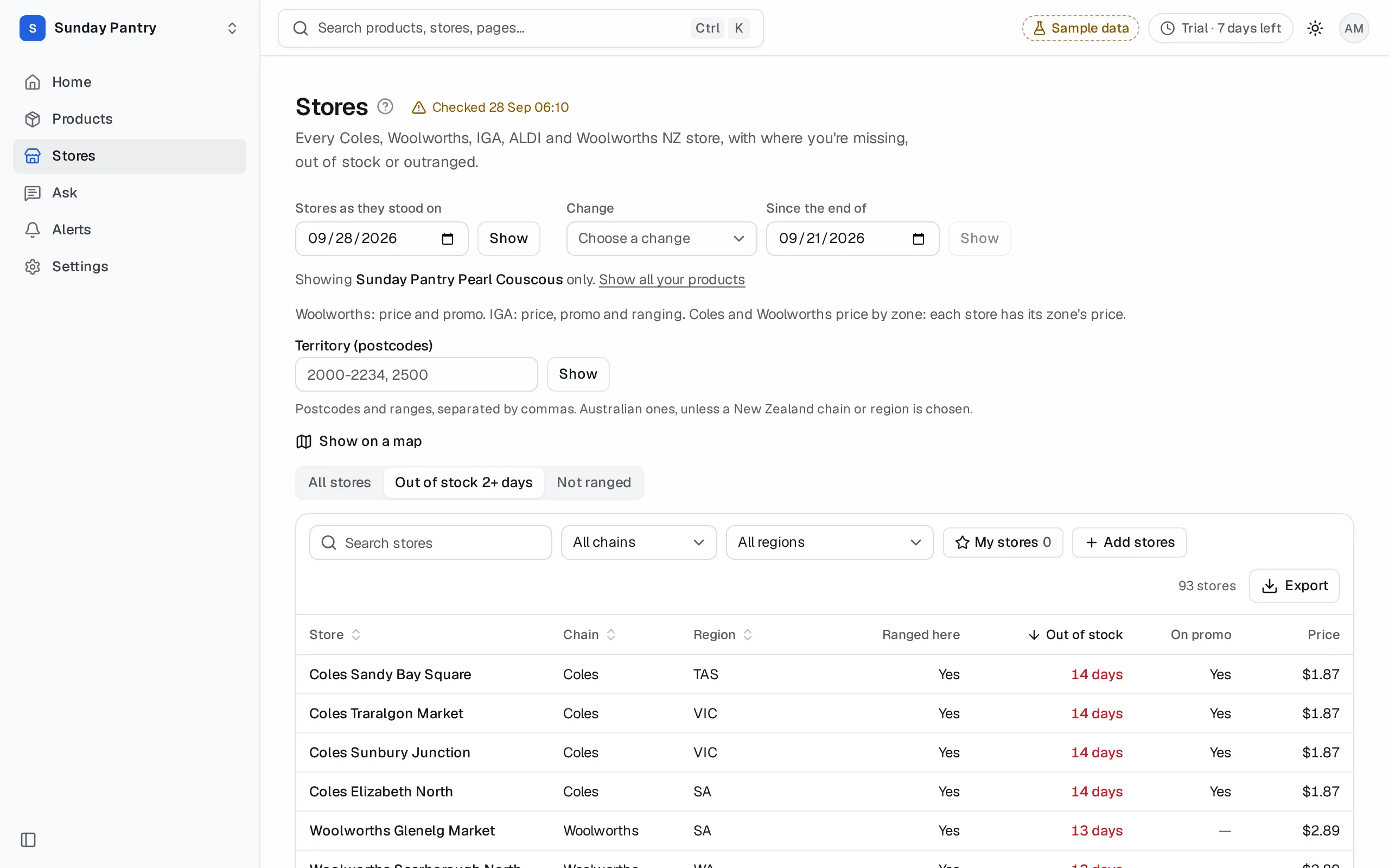
The tabs above the list decide which stores it shows.
| Tab | Shows | Use it to |
|---|---|---|
| All stores | Every store. | Look up any store. |
| Out of stock 2+ days | Stores where one of your products has been out of stock for two days or more, longest out first. | Plan rep visits and supply fixes. |
| Not ranged | Stores we read as not ranging at least one of your products. | See where you should be and aren't. |
| Rival carried, you're not | Stores that range a rival you watch and none of your products. A store where we have no ranging reading for your products isn't listed. | Find your range gaps. |
Why two days: a store at zero for one day is often a normal day's sell-through before a delivery. Two days or more is a gap on the shelf worth acting on. See Out of stock 2+ days.
Stores opens on Your chains: the stores of the chains your products are sold at, with the stores your products have been out of longest at the top. Choose All chains for every store, or one chain.
Narrow any list with Search stores (by store name), the chain and the state (or region, for New Zealand). Click the Store, Chain, State (or Region) or Out of stock heading to sort. Click a store to open its page.
Stores that changed#
Find the stores where something happened since a day you choose, such as "which stores dropped us since the range review?".
- Under Change, choose what happened: Dropped, Added, Went out of stock, Back in stock, Went on promo, Came off promo or Price changed.
- Under Since the end of, pick the day to count from. It starts a week back. A day before your plan's history, or before we have the chain, counts from that first day.
- Click Show.
The list shows only the stores where it happened, with a line saying what it is ("Stores where any of your products was dropped from Sun 28 Sep to Mon 6 Oct"). To ask about one product alone, open the list from that product's page with Stores. Click Clear to go back to the full list. The CSV export keeps the filter.
From Home, See the stores on a change opens this list already set to that change and that day.
The columns#
| Column | What it shows |
|---|---|
| Store | The store's name. |
| Chain | Its chain. |
| State or Region | The store's state, or region in New Zealand. The heading reads Region once any New Zealand chain is covered. |
| Your products | How many of your products it ranges, out of those whose ranging we read there ("3 of 4"), and how many we have no reading for ("2 not read"). |
| Out of stock | How long your product has been out, counted from the longest gap ("14 days"), and how many of your products are out there if more than one. "Not read" where the chain's stock isn't read. |
| On promo | How many of your products are on promotion there. "Not read" where the chain's promotions aren't read. |
| Rival only | Where none of your products is ranged: how many of your watched rivals are. |
A store that doesn't sell your products at all shows Not sold here.
My stores, territory and map#
- My stores. On a store's page, click Add to My stores; it then reads In My stores. Or, on Stores, click Add stores, choose the chain and paste its store numbers, up to 200 at a time. Any past 200 stay in the box for the next add. My stores holds up to 500. Turn on My stores above the list to see only yours, at every chain. My stores are yours alone: each colleague keeps their own.
- Territory. Under Territory (postcodes), enter postcodes and ranges, such as "2000-2234, 2500", and click Show. Postcodes are read in your brand's own country. To use the other country's, choose one of its chains or regions first. See Work a rep's territory.
- Map. Click Show on a map to see the list as dots: out of stock, not ranged, on the shelf, or none of yours listed. Click Hide the map to close it.
The CSV export follows My stores and the territory, as it follows the other filters.
One product's stores#
From a product page, click Stores. The list shows that product's stores at its chain, with Ranged here and its shelf Price at each store. Click Show all your products to go back. (Rival carried, you're not is a list across your products, so it isn't offered for one product.)
For one product at IGA, where each store picks its own specials, two more lists show which stores ranging it have it On promo, and which are Ranged, no promo. See Check a promo actually ran.
The stores on a past day#
Under Stores as they stood on, pick a date and click Show. The list shows every store as it was at the end of that day. Use it to compare before and after a range review or a promo. How far back you can go depends on your plan. See History.
Export the list#
Click Export, then:
- CSV: stores: one row per store, as filtered on screen, with every column, plus the store number, and the postcode, latitude and longitude where we have them.
- CSV: by product: one row per product at each store, with its shelf state, days out, price and promotion. On a one-product list, only that product.
On plans without CSV, the menu shows which plan has it. See Export.
What it can't tell you#
- Woolworths and ALDI stock and ranging are read at only some stores, so their lists are shorter and their "not read" counts larger. See Chains and coverage.
- At chains whose stock isn't read, such as IGA, stores show "—" under Out of stock and never count as out of stock. The same goes for On promo where promotions aren't read. A line above the list says once what each chain reads.
- Not ranged means the store doesn't carry the product. It doesn't say why: the store may never have been allocated it.
- Dropped and Added compare two days' ranging. A store whose ranging wasn't read on either day isn't counted either way.
- A store that's out of stock for less than two days doesn't appear under Out of stock 2+ days.
- Days out count from the first day we have data. A gap that began before then shows as shorter than it is.
Was this page helpful?
Updated 9 October 2026