Reference
Find your way around
The menu, search, switching brand, the theme and the keyboard shortcuts.
The menu#
The menu on the left has every page: Home, Products, Stores, Ask, Alerts and Settings. On a phone, open it with Open menu. Press ⌘/Ctrl then B to collapse it on a laptop.
Search#
The search bar at the top of every page finds anything: your products and any product on the shelves we read, brands, stores, categories, your alerts and team, pages and settings, and actions such as inviting a colleague. Click it, or press ⌘/Ctrl then K or / anywhere. On a phone, tap the search icon.
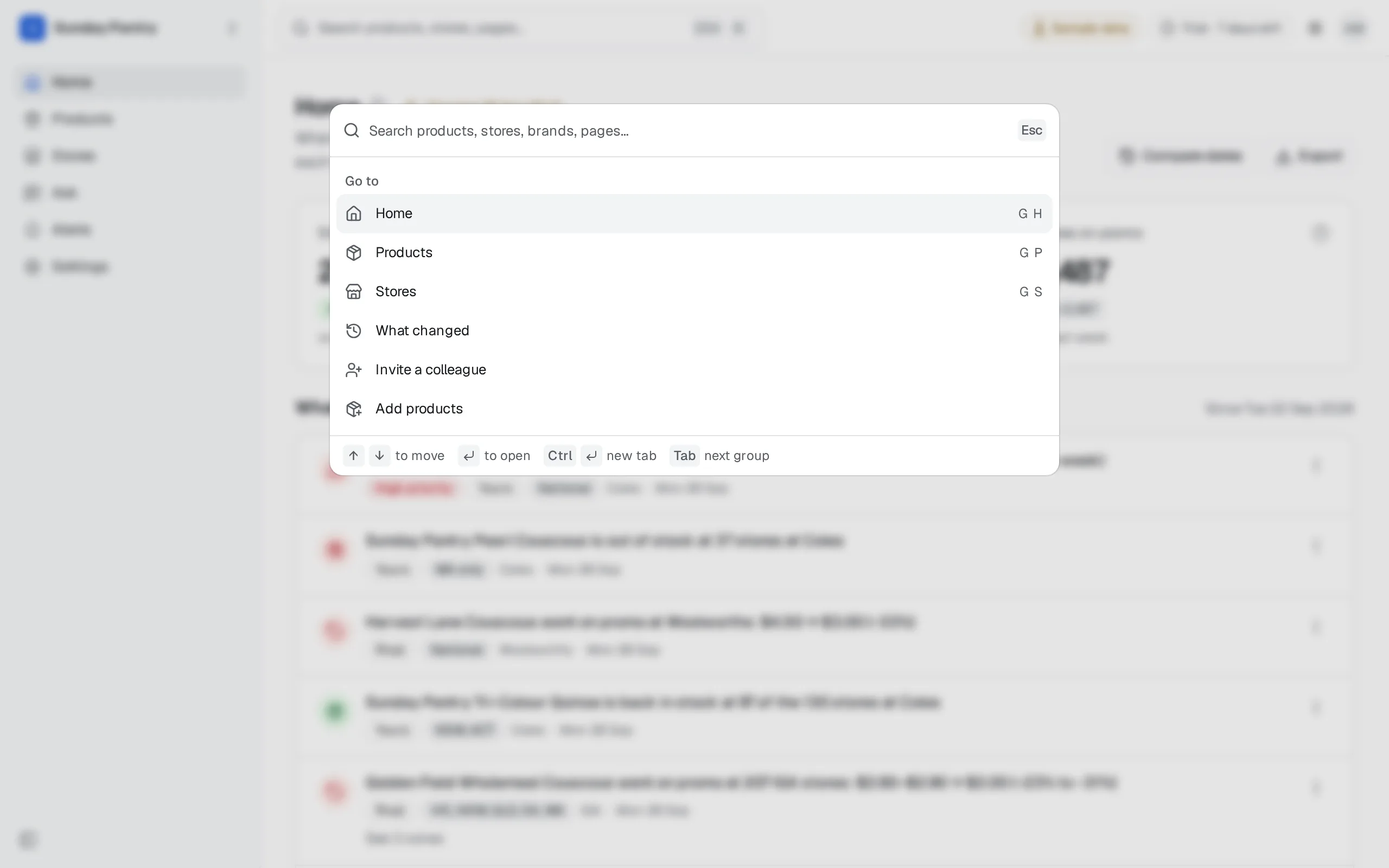
Type a plain question, such as "out of stock in WA" or "Coles promos this week", and the Answer group answers it in one line and opens the list behind it. See Search and quick answers.
Switching brand#
If you belong to more than one brand, or you're in an agency, the brand switcher at the top of the menu lists them. Choose one to switch. Everything you see, from Home to alerts, is that brand's. See Agency workspace.
Light and dark#
The app follows your device's light or dark setting. To choose one, use the theme button at the top of the page, or search for "theme".
Keyboard shortcuts#
| Keys | What it does |
|---|---|
| ⌘/Ctrl + K | Open the command menu: search products, go to a page, switch brand |
| ⌘/Ctrl + B | Collapse or expand the sidebar |
| / | Open the command menu |
| G then H | Go to Home |
| G then P | Go to Products |
| G then S | Go to Stores |
| G then O | Go to Promo week |
| G then A | Go to Ask |
| G then L | Go to Alerts |
| G then , | Go to Settings |
/ and the G shortcuts don't fire while you're typing in a box. ⌘/Ctrl then K and ⌘/Ctrl then B always work.
Was this page helpful?
Updated 9 October 2026