Reference
Team and roles
Who can see your brand, what each role can do, and how invites, seats and asking to join work.
Availability Every plan. Solo has 1 seat, Brand 3, Growth 10, Enterprise agreed with you.
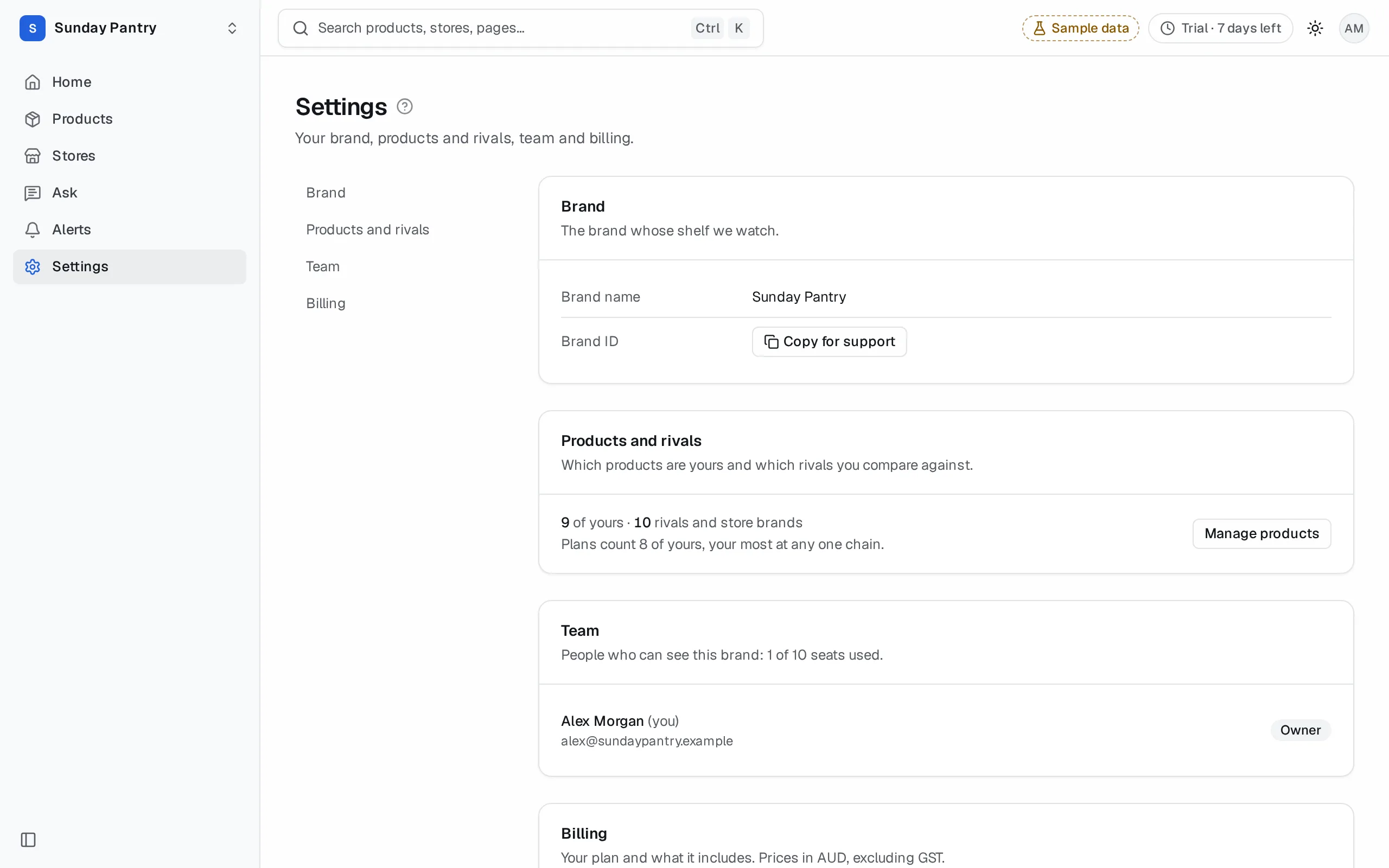
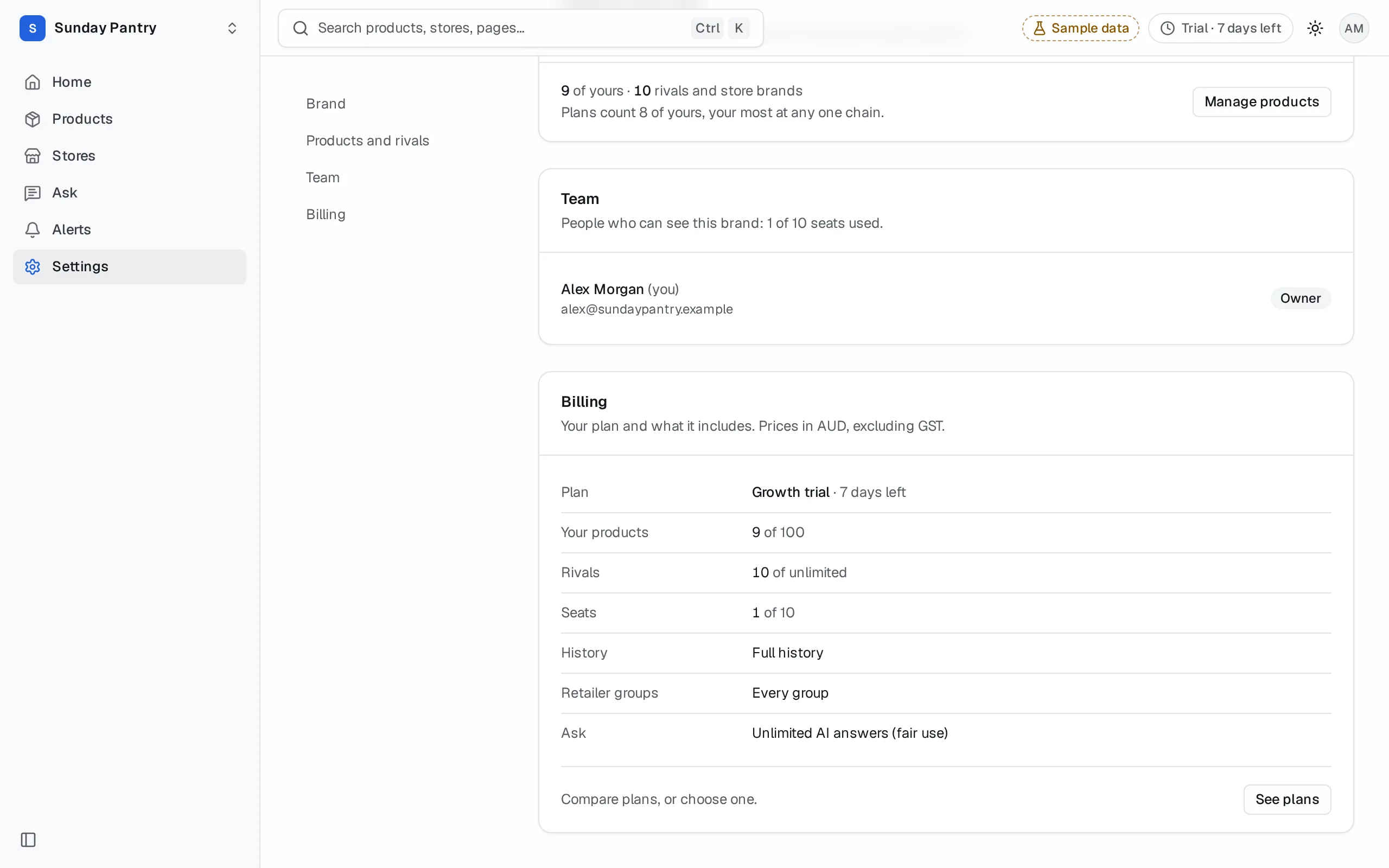
Everyone on your team sees the same brand: the same products, rivals, data and alert rules. Settings lists them under Team, with the seats used.
Roles#
| Role | Can |
|---|---|
| Owner | Everything an admin can, and can remove another owner. Usually the person who set the brand up. |
| Admin | Everything a member can, plus: change roles, remove people from the team, answer requests to join, cancel anyone's invitation, remove anyone's alert, choose the plan, and set up single sign-on (Enterprise). |
| Member | Use every page, set alerts, invite colleagues, send products to colleagues, and cancel their own invitations. |
A brand always keeps at least one owner or admin.
Invite a colleague#
- Go to Settings, then Team.
- Under Invite a colleague, enter their work email.
- Click Invite.
They get one email. Its link opens a page where one click joins your brand. No password. You can also invite someone by sending them a product.
An invitation shows as Invited until they join. It lasts 14 days. The person who sent it, or an admin, can cancel it. To resend, invite the same address again: it sends a new link, good for another 14 days. While every seat is taken, cancel the invitation and invite them again instead.
Seats#
Each person on the team uses a seat, and so does each open invitation. When every seat is taken, the invitation doesn't go, and the app names the plan with more seats. People from your agency don't use your seats. While your account is Paused, you can't invite anyone or approve a request to join. See Agency workspace.
Ask to join#
When someone signs up with an email at your company's domain and your brand is already here, they're offered Ask to join instead of setting up a second copy. Owners and admins see the request in Settings under Team, and approve or decline it. Approving uses a seat. If they already have an open invitation, they take the seat it holds.
Change a role or remove someone#
Owners and admins open the menu next to a person in Team:
- Make admin or Make member changes their role.
- Remove from team takes their access away at once and frees their seat.
Each shows Undo for a few seconds, a removal for about 10. If the seat has been taken since, a removal can't be undone. Nobody can change an owner's role here, and only an owner can remove another owner. The last owner or admin can't be removed or made a member: make someone else an admin first.
Your name and leaving#
Open the menu next to your own name:
- Add your name or Change your name sets how your team sees you, on the team list, on alerts you set and on invitations you send. Left blank, they see your email.
- Step down to member (owners and admins, while another owner or admin remains) makes you a member. It has no Undo: another admin can make you an admin again.
- Leave (with your brand's name) takes you off the brand, after you confirm. You can't undo it; someone on the team can invite you back. If you're the last owner or admin, make someone else an admin first.
Was this page helpful?
Updated 9 October 2026